MixCaptions AI Text, Subtitle
- 3.5
- Rating
- 100.00K
- Installs
- Free
- Price
 Analysis by App-foxy
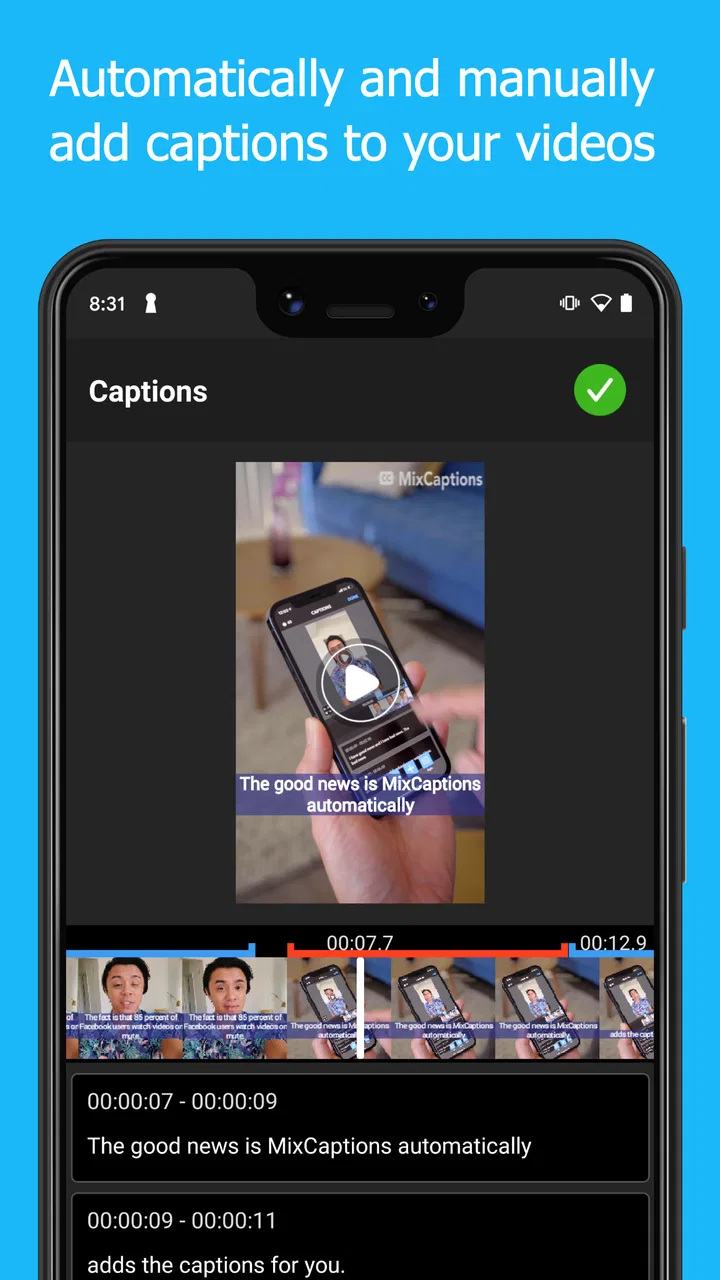
I tried MixCaptions AI Text, Subtitle as a practical video-captioning app rather than treating it like a full editing suite, and that distinction matters. Its main appeal is straightforward: it uses automatic captions to turn spoken words into on-screen text for videos intended for Instagram, IGTV, TikTok, YouTube, Facebook, and X. If you regularly publish clips where people may watch without sound, it addresses a real problem quickly. If you want detailed cinematic editing, advanced audio work, or a complete timeline-based production environment, I would look elsewhere.
MixCaptions comes from Mixcord Inc and sits in the video players and editors category. It is free to install, aimed at Everyone, and has passed the 100K+ install mark. The app was released on March 9, 2021, and the current version is 2.86.0.1.2.0 for devices running OS 10 or later. Its average rating is 3.5 from around 500 ratings, with 53 written reviews, so the public response suggests a useful but not universally smooth experience.
How the free access and paid value fit together
The most important cost detail is that the app has a free entry point, while in-app purchases range from $0.49 to $24.99 per item. I would not interpret that range as a promise that every useful function is included in one purchase. Instead, I would treat the free version as a way to test whether its caption workflow suits your voice, videos, and publishing habits before spending anything.
You May Also Like

 Blood Strike: 2.5 Anniversary
Blood Strike’s Loadouts Turn Every Drop Into a Tactical Gamble
A close look at Blood Strike’s custom loadouts: how fast access to signature weapons reshapes its battle royale rhythm, rewards preparation, and narrows the gap between fights.

 Pandora - Music & Podcasts
Pandora’s Music Is Easy to Start, but Harder to Recover
Pandora’s strength is its low-effort path from a seed to a station. Its weak spot is how much confidence it asks you to place in connection, setup, and quiet recovery.

 8 Ball Pool
 Is Built on Rivalries, Rematches, and Routine
A close look at the rivalries, rematches, shared routines, and unanswered safety questions that turn a quick pool match into a persistent mobile community.

 Samsung Music
’s Quiet Strength Is Playing What You Already Own
Its reach comes less from spectacle than from dependable access to a personal library. That simplicity is both the app’s strongest retention engine and its ceiling.

 AccuWeather: Weather Radar
AccuWeather Review: A Quick, Clear Forecast for Everyday Decisions
For everyday plans, the best forecast is the one you can understand quickly. AccuWeather makes rain timing, radar, and local conditions easy to act on, with a few trade-offs.

 Hill Climb Racing
Why Hill Climb Racing Still Turns Crashes Into One More Run
A tiny car, a bumpy hill and one more upgrade: Hill Climb Racing keeps resurfacing because its simple chaos makes every near-miss feel personal.
More From Our News Desk
View All News


That makes the first decision fairly easy. Install it, bring in the kind of clip you actually publish, and see whether the automatic text needs only light correction or a complete rewrite. The value of a captioning app depends less on its existence than on how much cleanup it saves you. A creator whose speech is clear and whose videos are short may get meaningful value from free access. Someone working with noisy recordings, several speakers, accents, or specialist vocabulary should test carefully before considering a purchase.
I also appreciate that the purchase question is separate from the basic reason to use the app. You are not paying simply to discover what captions are. You are deciding whether MixCaptions reduces enough repetitive typing and timing work to justify an optional expense. Since the available purchase range stretches from a small amount to a much larger one, I would avoid buying impulsively after one successful clip. First compare several real projects, including one with background noise and one with fast speech.
There is another practical point: free access can be especially valuable for occasional users. If you only add subtitles to a few personal videos, a dedicated caption tool may be more convenient than learning a larger editor, even if you never move beyond the no-cost experience. Regular creators have a different calculation. For them, the question is whether the app can become a dependable part of a repeatable workflow rather than merely a handy one-off utility.
What the app does well in everyday video work
The strongest use case is a short spoken clip that needs readable text without a long manual transcription session. I found the idea most useful for social posts, quick tutorials, talking-head videos, and demonstrations where the viewer needs to follow the narration. Automatic captions give you a first draft, then your attention can move to correcting words, checking timing, and making the result comfortable to read.
A realistic example would be a small business owner recording a product explanation during a lunch break. The original video may be good enough to publish, but many viewers will encounter it in a quiet public place or with sound turned down. Importing the clip into MixCaptions, reviewing the generated text, and correcting the product name or call to action could be faster than typing the entire script manually. That is the kind of modest time saving that makes this app worthwhile.
The app’s platform focus is also useful. Rather than forcing you to think about one destination only, it is designed around videos that may travel between Instagram, TikTok, YouTube, Facebook, and X. I would still inspect the final framing and caption placement for each platform, but the broad publishing context makes the tool suitable for creators who repurpose one recording instead of producing a separate edit for every audience.
One non-obvious advantage of automatic captions is that they expose problems in your own recording. When the generated text repeatedly misunderstands a phrase, that may reveal muffled audio, rushed delivery, or music competing with speech. I use those mistakes as an editing signal: lower distractions, record more clearly, or rewrite a sentence before publishing. In that sense, the caption pass can improve the source video, not just add accessibility text.
A workflow that saves more time than simply pressing generate
I would begin with the cleanest version of the video, not a compressed copy downloaded from another platform. Then I would review the captions in three passes. First, I would correct names, numbers, technical terms, and short words that automatic transcription commonly confuses. Second, I would watch the video with the sound reduced and check whether the text makes sense on its own. Third, I would look at the rhythm: a caption can be technically correct but uncomfortable if it changes too quickly or breaks a natural phrase.
That second pass is particularly important for silent viewing. Spoken language often contains pauses, repetition, or references that are obvious with audio but confusing in text. I would remove unnecessary verbal clutter where the editor allows it, while keeping the speaker’s meaning intact. Captions should help someone follow the video, not reproduce every hesitation so literally that reading becomes tiring.
A second useful habit is to keep a personal vocabulary checklist. If your videos contain brand names, local places, product models, or recurring jargon, review those terms every time. The app can create a helpful draft, but automatic recognition should not be trusted blindly with details that affect credibility. A single wrong name in a tutorial or sales clip can make an otherwise polished post look careless.
I would also caption the finished version, not the roughest cut. If you generate text before removing long pauses or rearranging sentences, you may create extra correction work later. My preferred order is: trim the video, make the spoken story coherent, generate captions, correct the words, then watch the complete result as a silent viewer. This workflow is more efficient than repeatedly regenerating captions after every small edit.
Where the experience can become frustrating
Automatic captioning is not the same as perfect transcription, and MixCaptions should be judged on how much correction your material requires. Fast speech, overlapping voices, strong background noise, music, and unusual terminology can all turn a convenient draft into a project that still needs close attention. I would not upload a public-facing video without reading the captions from beginning to end.
The app is also not the right replacement for a full editor when your project depends on complex visual storytelling. If you need layered graphics, detailed color work, elaborate transitions, sophisticated audio mixing, or precise multi-track control, a larger mobile editor will give you more room to work. MixCaptions makes the caption stage easier; it does not remove the need for another tool when the video itself needs extensive construction.
There is a creative trade-off too. Captions can improve access and retention, but they can also cover faces, demonstrations, labels, or important screen content if they are placed without care. I would check every scene where text already appears. A caption that sits over a button, ingredient, chart, or product detail can make the video harder to understand. The fastest automatic result is not always the clearest final result.
Another limitation is the need to think about captions as part of the composition. Short vertical videos often have little spare space, especially when platform controls or a creator’s own graphics are present. I would leave visual breathing room while recording and avoid placing essential information at the very bottom or top of the frame. This is not a reason to reject the app, but it does mean the best results begin before import.
The public rating of 3.5 suggests that expectations should remain realistic. That average does not tell me which individual workflow caused each complaint, but it does reinforce my own position: MixCaptions is worth testing, not blindly trusting. The free starting point lowers the risk, while the optional purchase range means I would only pay after confirming that its recognition and editing process work well with my particular content.
How it compares with typing captions yourself
Manual captions still have one major advantage: complete control from the first word. If a clip is very short, carefully scripted, and already written out, typing may be just as quick as reviewing automatic text. Manual work also avoids the particular errors caused by pronunciation, noise, or specialist language. For a polished educational video with a prepared transcript, I might prefer starting from the script rather than asking an automatic system to guess every sentence.
MixCaptions becomes more attractive when the spoken content is improvised or when you publish often. In those situations, transcription creates a starting structure that would otherwise take time to build. It can also help when you recorded a useful thought but did not prepare a written version. I would choose the app for speed, then retain human review for accuracy and tone.
Compared with a general mobile video editor, the benefit is focus. A broad editor may offer more controls but can make captioning feel like one small task among dozens. MixCaptions is easier to justify when subtitles are the central requirement and the rest of the edit is already finished. The trade-off is flexibility: a full editor is usually the better home for a project that needs captions plus extensive visual and audio treatment.
Compared with relying on captions generated after uploading to a social platform, a dedicated workflow gives me more opportunity to inspect the result before publication and carry the captioned video across different destinations. I would still check how the final file looks on each platform, but preparing the text as part of the edit can create a more consistent presentation than leaving everything to separate automatic systems.
Who is most likely to get real value
I would recommend trying it first if you make spoken social videos, tutorials, interviews with one clear speaker, personal updates, or short promotional clips. It is particularly suitable for someone who understands the importance of silent viewing but dislikes writing every caption manually. A small creator can use it as a practical middle ground between publishing without subtitles and investing time in a full professional post-production process.
It can also help people who are not confident writers. Automatic text gives you a rough transcript that can be edited into a description, a short script, or a checklist of points to cover in a follow-up recording. I would not treat the generated wording as finished copy, but it can make the content easier to reuse. That is a useful secondary benefit when one video needs to support several posts.
I would be more cautious if your content involves multiple people speaking at once, heavy environmental noise, frequent code-switching, or terminology that must be exact. Legal, medical, financial, and technical material deserves especially careful review because a small transcription error can change the meaning. For those projects, MixCaptions may still produce a draft, but I would budget time for a full human correction rather than assuming the automatic result is publication-ready.
I would also skip it as a primary editor if your goal is to build elaborate videos entirely on a phone. The app’s value is concentrated in captions and subtitles. If your priority is animation, detailed sound design, compositing, or a complex sequence of visual layers, choose a more comprehensive editor and add captioning within that environment or through a separate specialist workflow.
My verdict after weighing convenience against control
My view is positive but specific: MixCaptions is a useful caption-first tool, not a universal answer to mobile video editing. Its free availability makes experimentation sensible, and its automatic approach can remove the most tedious part of preparing short spoken videos. The best results come when I treat the generated captions as an editable draft, not as an unquestionable final product.
The paid value depends entirely on repetition. An occasional creator may find the free experience sufficient, while someone publishing regularly may save enough manual effort to consider an in-app purchase after testing several different recordings. I would not pay based on the store summary alone. I would pay only after checking accuracy, correction time, readability, and how comfortably the finished videos move into my normal publishing routine.
My recommendation is to install it if captions are your bottleneck, test it with a real video, and keep it only if the review stage is faster than starting from an empty text box. Choose another solution when you need a complete production studio, absolute transcription precision without close supervision, or advanced control over every visual element. For the right creator, MixCaptions turns an overlooked finishing task into a manageable workflow; for everyone else, its focused purpose may feel too narrow to justify changing tools.
FAQs for MixCaptions AI Text, Subtitle
01What is MixCaptions AI Text, Subtitle, and what can it do?
MixCaptions AI Text, Subtitle is a video-captioning app designed to generate subtitles from spoken audio and add customizable text to videos. After importing or recording a clip, the app can analyze the speech, create a caption track, and let you adjust the wording, timing, style, position, and appearance. It is useful for social media videos, interviews, tutorials, short films, and accessibility-focused content.
02How accurate are the automatically generated captions?
Caption accuracy is generally good when the speaker talks clearly and the recording has limited background noise, but it is not perfect. Strong accents, several people speaking at once, music, poor microphone quality, and technical vocabulary can cause mistakes. Before exporting, review the complete transcript and correct names, numbers, punctuation, and timing manually. Treat the AI result as a helpful first draft rather than a final proofread script.
03Can I customize the subtitle design and timing?
Yes, MixCaptions provides editing and styling tools that allow you to refine the generated subtitles. Depending on the version and platform, you can edit individual words or lines, change their timing, select fonts, adjust colors and backgrounds, and position captions on the screen. These options make it possible to create subtitles that match your brand or remain readable over busy video footage.
04Does MixCaptions support different languages and video formats?
The app is intended for creators working with spoken content in multiple languages, although available transcription and translation options can vary by app version, operating system, and subscription plan. Import and export compatibility may also differ depending on the device. Check the current listing before downloading if you need a specific language, file format, aspect ratio, or workflow for platforms such as TikTok, Instagram, or YouTube.
05Is MixCaptions free, and are there any limitations?
MixCaptions may offer free access to basic captioning features, but advanced tools can be restricted by in-app purchases or a subscription. Possible limitations include watermarks, export quality, video length, caption-generation quotas, premium styles, translation features, or access to certain AI tools. Review the pricing screen and trial conditions carefully before confirming payment, especially because subscriptions can renew automatically unless canceled through your app-store settings.
Pros
- Automatically creates subtitles from spoken audio.
- Supports multiple languages for wider audience reach.
- Lets you customize subtitle styles
- fonts
- and colors.
- Useful for improving accessibility on social media videos.
- Can export captioned videos in formats suited to sharing.
Cons
- Automatic transcription may misinterpret accents or background noise.
- Advanced tools may require a paid subscription.
- Long videos can take noticeable time to process.
- Some export options may include branding on free plans.
- Editing captions precisely on a phone screen can be tedious.

MixCaptions AI Text, Subtitle
Gallery